
The Final Legacy Release (Stable)
Borderless Gaming
Classic v9.6.0
Don’t let the new updates ruin your workflow. Download the simple, lightweight version you know and love.
No complex UI. No .NET 8 bloat. Just fullscreen.
✔ Compiled from GitHub
✔ Code Signed
✔ VirusTotal Clean
Simplicity vs. Complexity
Recent updates to the Steam version have introduced complex UIs and heavy dependencies.
We believe a utility tool should stay invisible and lightweight.
Steam Version (v1.1.0)

The “Modern” Rewrite
Requires .NET 8 runtime and paid $6.99 on Steam.
- ❌ Bloated: Requires .NET 8 dependencies.
- ❌ Complex UI: “Convoluted mess” (User Reviews).
- ❌ Buggy Startup: Auto-start issues reported.
- ❌ Paid: Costs money ($6.99).
RECOMMENDED
Classic Version (v9.6.0)
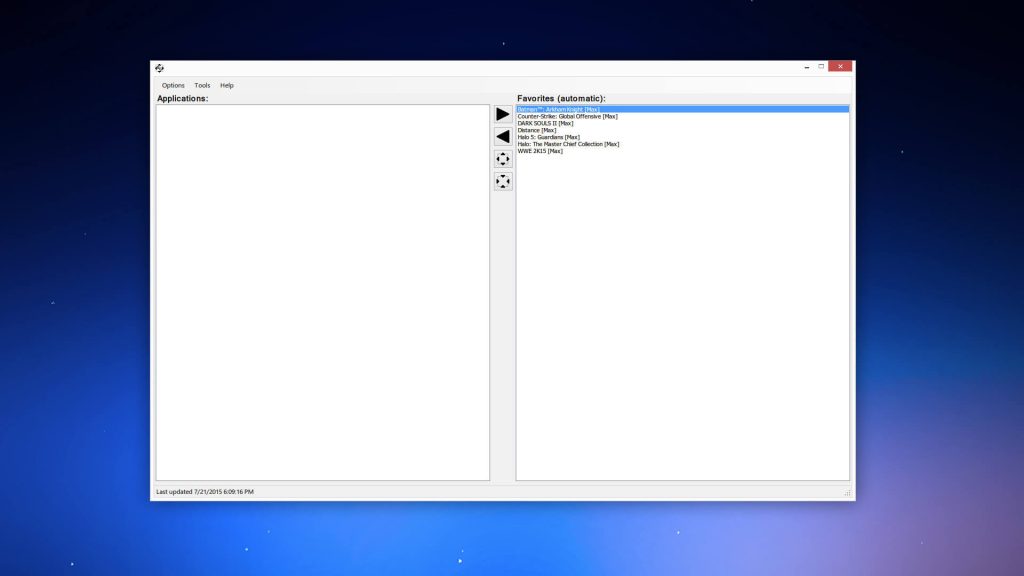
The “Legacy” Final
Native performance, zero bloat, 100% Free.
- ✅ Lightweight: Native C#, no bloat.
- ✅ Simple UI: The intuitive interface.
- ✅ Rock Solid: Proven stability.
- ✅ Free Forever: Compiled from Source.
Fixes Crashes in Top Titles
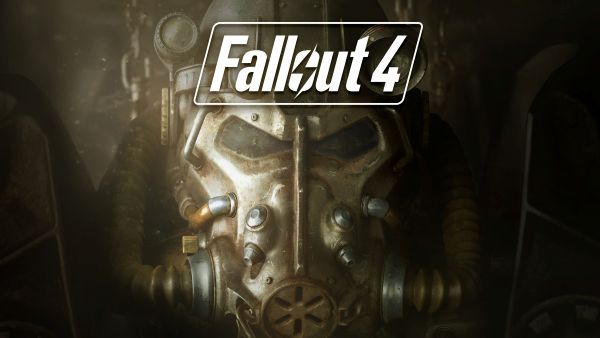
While it works with 99% of games, Borderless Gaming is considered “Essential Software” for these popular titles.
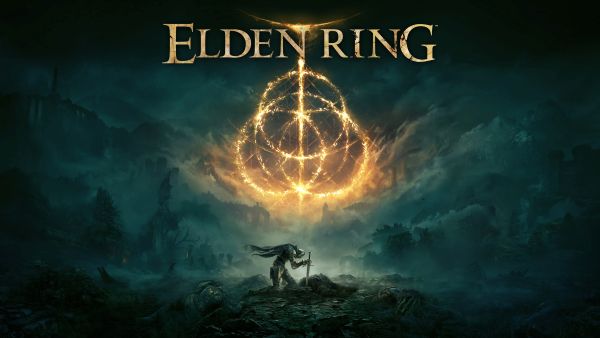
Elden Ring
Forces borderless mode to remove black bars and enable smoother multi-monitor support.
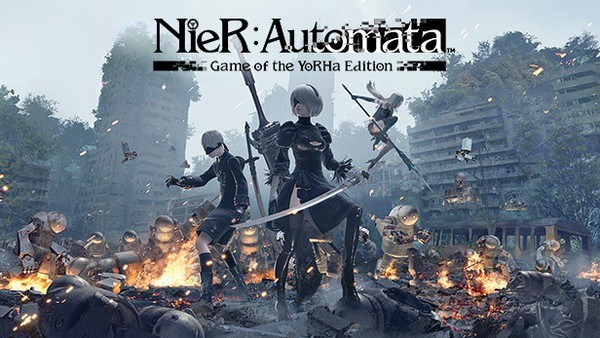
NieR: Automata
Resolves upscaling issues and prevents the “white screen” freeze on launch.
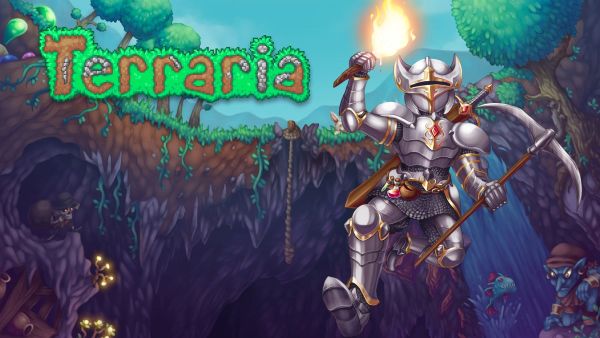
Terraria
Fixes mouse cursor escaping the window and erratic window border glitches.

The Witcher 3
Allows instant Alt-Tabbing to browser guides without minimizing the game.

Retro Emulators
Forces old 4:3 windowed emulators to fill your screen comfortably without distortion.
Setup in 30 Seconds
1
Set Game to Windowed
Launch your game. Go to video settings and ensure “Windowed Mode” is selected. This is crucial!
2
Open Borderless Gaming
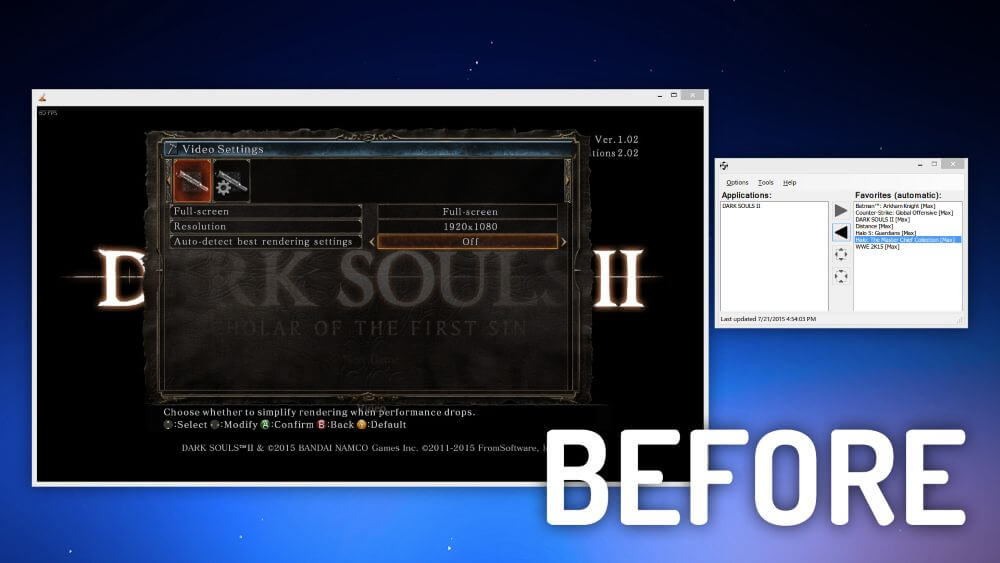
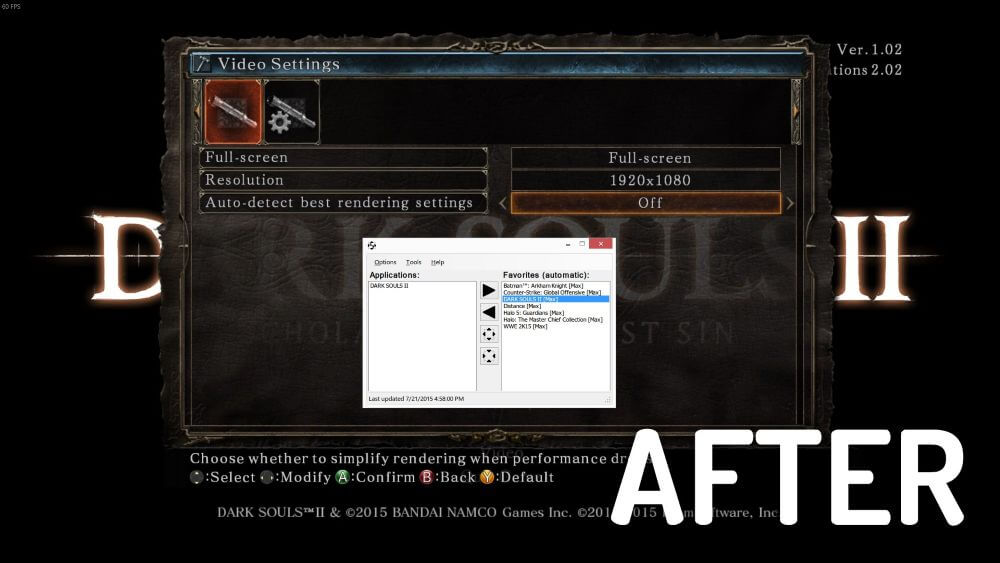
Run the app (v9.6.0). You will see your running game listed in the “Applications” box on the left.
3
Make it Borderless
Select your game and click the Right Arrow (▶) button to move it to “Favorites”. It will instantly go fullscreen.
Pro Tip: You don’t even need to open the app UI. Just click on your game window and press Win + F6 to toggle borderless mode instantly!
Common Questions
Does this work with Anti-Cheat? (Will I get banned?)
Generally, yes. Borderless Gaming does not inject code into the game like cheats do; it simply manages windows. However, for competitive games with strict anti-cheat (like Valorant), always check their specific TOS.
Why use Classic v9.6 instead of Steam v1.1?
Many users prefer v9.6.0 because it is simpler, lightweight (no .NET 8 required), and has reliable auto-start functionality, which the new update unfortunately broke for some users.
Does it affect FPS / Performance?
It usually improves smoothness by eliminating screen tearing without V-Sync lag. However, exclusive fullscreen might still offer slightly lower input latency for competitive esports.
My game isn’t showing up in the list?
Ensure your game is running in Windowed Mode first. If it’s in Exclusive Fullscreen, Windows hides it from other apps, so Borderless Gaming can’t see it.
Does Borderless Gaming reduce FPS or input lag?
It depends on the game. Generally, Borderless Windowed mode adds a tiny amount of input lag (due to Windows DWM V-Sync) compared to Exclusive Fullscreen. However, it eliminates screen tearing and provides smoother frame pacing, which many players prefer over raw FPS. For competitive shooters like CS:GO or Valorant, exclusive fullscreen is still recommended.
Why does my game show black bars in Borderless mode?
This usually happens if your game’s in-game resolution doesn’t match your monitor’s native resolution. For example, running a 1080p game on a 1440p screen. To fix this, go to the game’s video settings and ensure the resolution matches your desktop exactly before using the tool.
How do I stop my mouse from moving to the second monitor?
This is a common issue in multi-monitor setups. Borderless Gaming has a built-in feature for this. In the options menu, enable “Mouse Lock” (or press the Scroll Lock key). This constrains your cursor inside the game window so you don’t accidentally click outside during intense battles.
Does Borderless Gaming work on Windows 7 or 8?
Yes! The Classic v9.6.0 version is fully compatible with Windows 7, 8, 10, and 11. Unlike the new Steam version (which requires modern .NET runtimes), the Classic version is lightweight and works on older operating systems perfectly.
How do I uninstall Borderless Gaming completely?
Since the Classic version is a portable-friendly app, you can usually just delete the folder. If you used the installer, go to Control Panel > Programs and Features to uninstall. It does not leave heavy registry keys or background services behind.
Ready to Fix Your Games?
Join thousands of gamers who chose the reliable Classic version.
Say goodbye to borders and crashes today.