
If you play Fallout 4 on Windows 10 or 11, you likely know the pain: You are exploring the Commonwealth, you accidentally hit Alt+Tab to check a map or change a song, and… the game freezes. Or worse, it crashes to the desktop (CTD).
Bethesda’s Creation Engine is notorious for handling “Exclusive Fullscreen” poorly. On top of that, the native launcher often fails to apply the correct resolution on modern ultrawide or high-refresh-rate monitors.
The solution? Stop using the game’s broken fullscreen mode. Instead, use Borderless Gaming to force a stable, crash-free windowed experience.
In this comprehensive guide, we will fix your Fallout 4 setup permanently. We won’t just cover the software; we’ll also dive into the .ini file tweaks and physics fixes necessary for a smooth experience.
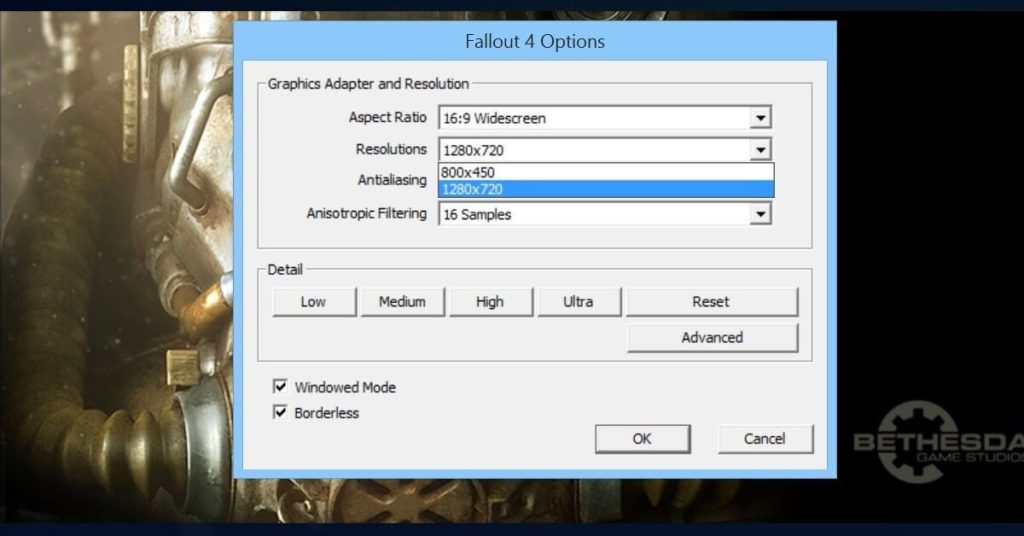
Table of Contents
Why Native Fullscreen Fails in Fallout 4
Why does a AAA game crash just because you switched windows? In “Exclusive Fullscreen” mode, Fallout 4 takes complete control of your graphics driver. When you Alt-Tab, the game loses that control context. When you try to tab back in, the engine often fails to re-initialize the graphics pipeline, resulting in a black screen or a crash.
Benefits of using Borderless Gaming Fix:
- Zero Crashes: Alt-Tab instantly without fear.
- Smoother Frame Pacing: Reduces micro-stuttering common in the native engine.
- Multi-Monitor Support: Move your mouse to your second screen seamlessly (when in menus).
- Overlay Compatibility: Works better with Discord, Steam Overlay, and OBS.
The “Lazy” Launcher Method
For 80% of users, simply adjusting the launcher and using the Borderless Gaming tool is enough.
Step 1: Configure the Launcher
- Open the Fallout 4 Launcher (via Steam).
- Click on Options.
- Uncheck “Windowed Mode” (Wait, stay with me).
- Actually, ensure Windowed Mode IS checked.
- Uncheck “Borderless”. (We want a standard window with borders, so our tool can detect it properly).
- Select your native resolution (e.g., 1920×1080 or 2560×1440).
- Click OK.
Note: Why uncheck “Borderless” in the launcher? Bethesda’s native borderless mode often has stuttering issues. We prefer to generate a raw “Window” and let the Borderless Gaming software handle the stretching, as it’s often smoother.
Step 2: Apply the Tool
- Download Borderless Gaming v9.6.0 if you haven’t already.
- Launch Fallout 4. It should appear as a box with a title bar on your desktop.
- Open Borderless Gaming.
- Select Fallout 4 in the left list and click the Right Arrow (▶).
- The game should instantly snap to fullscreen.
Get Fallout 4 GOTY Edition Global Key for up to 70% OFF on G2A.
The “Pro” Method (INI File Editing)
The Fallout 4 Launcher is buggy. Sometimes it resets your settings, or it doesn’t show your custom resolution (especially for Ultrawide users). The robust way to fix this is to edit the configuration files directly.
Step 1: Locate the File
Navigate to your documents folder:
Documents \\ My Games \\ Fallout4 \\ Fallout4Prefs.iniStep 2: Edit the Values
Right-click Fallout4Prefs.ini and open it with Notepad. Find (Ctrl+F) the [Display] section and modify these lines to match exactly:
bMaximizeWindow=0 bBorderless=0 bFull Screen=0 iSize H=1080 <-- Change to your monitor Height iSize W=1920 <-- Change to your monitor Width
Explanation: We are explicitly telling the engine: “Do NOT run fullscreen, do NOT run borderless, just give me a raw window.” This provides the cleanest canvas for Borderless Gaming to work its magic.
Step 3: Save and Lock
Save the file. Right-click the file, select Properties, and check “Read-only”. This prevents the Fallout 4 Launcher from overwriting your perfect settings.
The High-FPS Physics Fix (Crucial!)
If you are using a 144Hz or higher monitor, switching to Windowed Mode might unlock your frame rate. In Fallout 4, the game speed is tied to the frame rate.
If your game runs at 144 FPS, the game will run at 2x speed (lockpicking is impossible, dialogue overlaps, physics go crazy).
You MUST cap your FPS to 60 or 72 (half of 144).
How to Cap FPS for Stability:
- Nvidia Users: Open Nvidia Control Panel > Manage 3D Settings > Program Settings (Fallout 4) > Max Frame Rate > Set to 60.
- AMD Users: Use Radeon Chill to limit FPS to 60.
- Everyone: You can also use a mod like “High FPS Physics Fix” from Nexus Mods if you insist on playing above 60 FPS.
Troubleshooting
The Game is Offset / Wrong Position
If the window appears halfway off the screen:
- Open Borderless Gaming.
- Right-click Fallout 4 in the Favorites list.
- Uncheck “Use Current Monitor”.
- Ensure your Windows Display Scaling is set to 100%, or right-click \`Fallout4.exe\` > Properties > Compatibility > Change high DPI settings > Check “Override high DPI scaling behavior” (Application).
Game Crashes on Startup with Borderless Gaming
This happens if the tool hooks in too early.
Fix: Right-click Fallout 4 in Borderless Gaming > Select “Delay” > Set to 5 seconds. This gives the heavy Creation Engine enough time to load memory before the window gets resized.
Conclusion
Fallout 4 is a masterpiece, but its technical foundation is shaky. By combining windowed mode via INI tweaks with the stability of Borderless Gaming, you get the best of both worlds: a crash-free experience that looks perfect on your monitor.
Now that your game is stable, you can get back to building settlements—or ignoring Preston Garvey.