Are you tired of your games crashing every time you Alt-Tab to check a guide or change your music? Do you hate the screen tearing that comes with native fullscreen mode, but don’t want the input lag of V-Sync?
Trust me, I know how frustrating it is. Native fullscreen on Windows has always been a headache for gamers, especially with multi-monitor setups.
The solution is Borderless Gaming. This simple, open-source tool forces any game into a “fake” fullscreen mode (Windowed Borderless), giving you the immersion of fullscreen with the stability and multitasking ease of a window.
In this comprehensive guide, we will dive deep into how to set up, configure, and master Borderless Gaming v9.6.0. We’ll also cover advanced features like Regex matching and troubleshooting stubborn games.
Table of Contents
Windowed vs. Borderless vs. Exclusive Fullscreen
Before we start clicking buttons, it’s helpful to understand why you need this software. Windows handles games in three primary ways:
Exclusive Fullscreen:
The game takes full control of your GPU driver.
Pros: Lowest input lag.
Cons: Slow Alt-Tabbing (screen flickers black), crashing risks, impossible to use second monitors easily.
Windowed Mode:
The game runs in a container with borders and a title bar.
Pros: Instant multitasking.
Cons: Ugly borders, immersion breaking, wasted screen space.
Borderless Windowed (The Sweet Spot):
The game runs in a window, but stretches to fill the screen precisely.
The Result: You get the immersive look of fullscreen with the instant multitasking of a window. No flickering, no crashes.
While many modern games include a “Borderless” option natively, thousands of older titles (like Fallout 3, Terraria, or NieR: Automata) do not. That is where Borderless Gaming saves the day.
Before You Start
To follow this guide, ensure you have the correct setup:
- Download the Software: Get the free Borderless Gaming Classic (v9.6.0) from our verified download page. We recommend v9.6.0 over the new Steam version for its simplicity.
- Prepare Your Game: Launch the game. Go to Video Settings and set Display Mode to “Windowed”. Ensure the resolution matches your monitor’s native resolution (e.g., 1920×1080).
Crucial Step: Borderless Gaming cannot detect or manipulate a game if it is running in “Exclusive Fullscreen”. You MUST switch it to “Windowed” mode inside the game options first!
Step-by-Step Setup Guide
Step 1: Detect Your Game
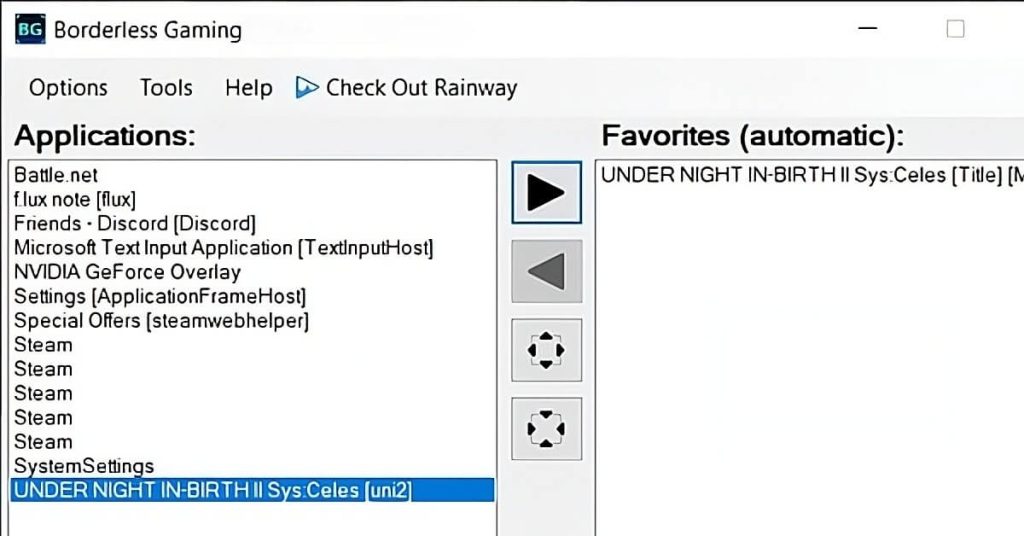
Open the Borderless Gaming application. Look at the box on the left labeled “Applications”. This list shows all currently open windows on your desktop.
If you don’t see your game, click on the game window to make it active, then Alt-Tab back to the tool and click “Refresh” in the menu.
Step 2: Make it Borderless
Select your game from the left list and click the Right Arrow (▶) button. This moves the game to the “Favorites (Automatic)” list.
Immediate Effects:
- Window borders disappear.
- The game snaps to fill the screen coordinates (0,0).
- Taskbar is covered (usually).
Step 3: Automatic Automation
Once a game is in the “Favorites” list, the software creates a persistent profile. The next time you launch Skyrim or Minecraft, Borderless Gaming will detect the process and automatically apply the fix within seconds. You don’t need to do anything.
Advanced Configuration
For most users, the steps above are enough. But for power users or stubborn games, you need to dig deeper.
Fixing “Stubborn” Games with Delay
Some engines (like Bethesda’s Creation Engine) resize their windows multiple times during startup. If Borderless Gaming applies the fix too early, the game might reset itself to windowed mode.
The Fix: Right-click the game in your Favorites list > select Delay > set it to 2-3 seconds. This tells the tool to “wait” until the game has fully initialized before forcing the window size.
Specific Window Sizes
What if you don’t want fullscreen? What if you want a specific 720p window for streaming?
You can right-click a Favorite and choose “Set Window Size”. You can manually input 1920 x 1080 (or any custom resolution) and force the window to stay at that exact size, regardless of what the game wants to do.
Managing Multi-Monitor Setups
If the game jumps to the wrong monitor when maximized:
- Go to Options > Use Current Monitor.
- Drag the windowed game to your desired screen before activating Borderless mode.
The “Hidden” Hotkeys
You can control the software without ever opening the UI window. Memorize these global hotkeys:
- Win + F6: The “Magic Toggle”. Press this while in any game to instantly toggle borderless mode. Perfect for testing.
- Win + Scroll Lock: Hide Mouse Cursor. Useful for old RPGs where the Windows cursor gets stuck on top of the in-game reticle.
- Scroll Lock: Constrain Mouse. This locks your mouse inside the game window. This is essential for multi-monitor gamers playing shooters (CS2, Valorant) to prevent clicking on the second screen by accident and minimizing the game.
Troubleshooting
My Game Has Black Bars / Wrong Aspect Ratio
This usually happens if the game’s resolution doesn’t match your monitor’s resolution.
Fix: Ensure the in-game resolution is set to your monitor’s native size (e.g., 2560×1440). If the game doesn’t support that resolution, Borderless Gaming will stretch it, potentially causing black bars or distortion.
The Windows Taskbar is Still Visible
Sometimes Windows Explorer fights for priority.
Fix: Go to Borderless Gaming Options > check “Hide Taskbar”. If that fails, click the game window once, then press the Windows key twice to refresh the taskbar layer order.
Anti-Cheat Warnings?
Borderless Gaming does NOT inject code into game memory (unlike Cheat Engine). It simply uses standard Windows API calls to resize windows. It is generally safe for VAC, BattlEye, and Easy Anti-Cheat. However, always exercise caution in high-stakes competitive ranked matches.
Conclusion
Borderless Gaming bridges the gap between old software design and modern hardware. It breathes new life into classics like Fallout 3 and makes modern multitasking seamless in titles like Elden Ring.
If you haven’t installed it yet, stop suffering from Alt-Tab crashes and get the stable classic version today.